There are two options for loading articles for eScholarship journals into Janeway for publication:
- Back Content Plugin - Suitable for uploading articles for an individual issue. The Back Content Plugin gives editors an interface for entering article metadata and uploading publication-ready PDFs, bypassing the regular review and production workflows.
- Batch Import - Suitable for uploading articles for multiple issues, or transferring back issues from an external website. Batch Import provides editors with a spreadsheet for entering metadata and URLs where production-ready PDFs can be found.
Back Content Plugin
Before starting with the Back Content Plugin, make sure you have created the empty Issue entry for the content you intend to upload by going to Back Content > Issues > + Create Issue. If you intend to utilize Section Headings in your Table of Contents, you should also configure those by going to Staff > Manager > Sections (Article Types).
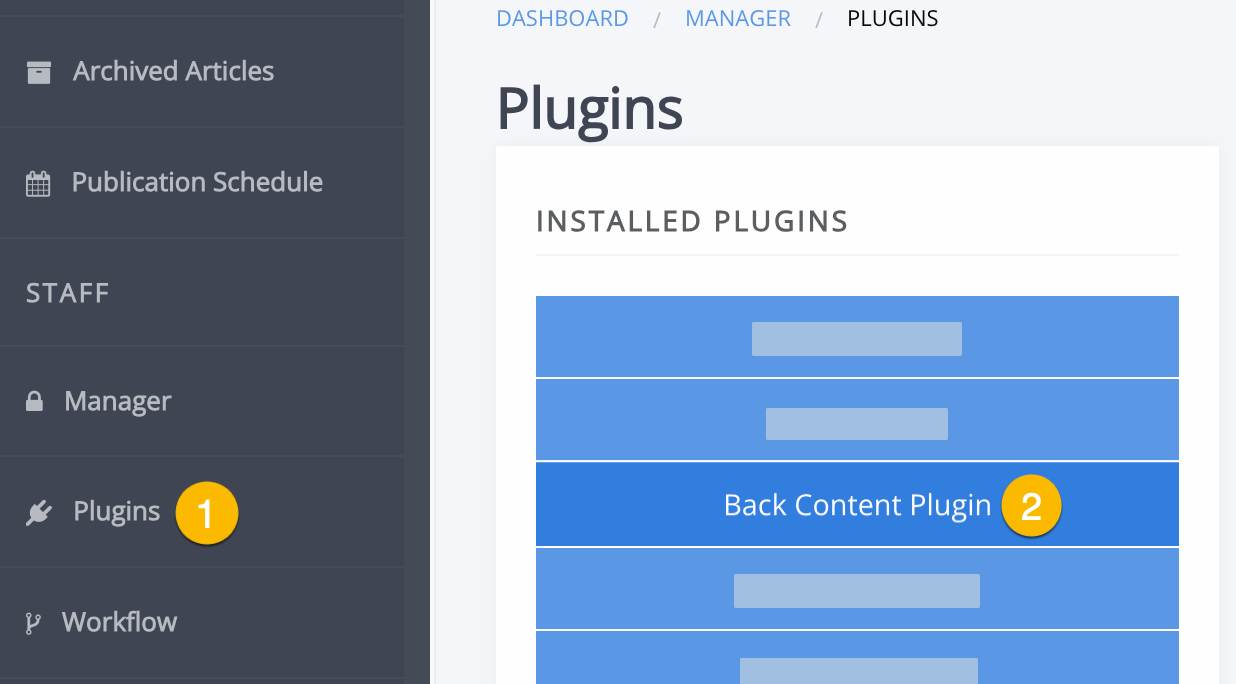
- To access the Back Content Plugin, go to Staff > Plugins and select Back Content Plugin.
- Select Start Submission
- Continue through the 4-stage process to enter metadata, author information, files, and publication information for each article you wish to publish.
- If you'd like to publish the article right away, select Publish on the final screen. If you'd like to add more articles before publishing, select Save & Add Another.
- To adjust the order of articles in the Table of Contents, select Back Content > Issues from the sidebar, select the issue you need to work with, and drag-and-drop the articles into the correct order. At the top of this screen you can also upload cover art, and specify the issue title and description by selecting Edit Details.
- If you need to make any changes to the metadata or files for any of the articles you uploaded, select the title of the article that needs attention and use the Edit Metadata link to update metadata, or scroll to the Galleys section of the page and replace the PDF file.
- After making any changes to your content, whether it's the issue ordering, issue information, article metadata or files, navigate to Staff > Plugins > eScholarship Publishing Plugin and select Publish Full Issue next to the issue you updated.
Batch Import
If you are working with a large number of articles, the Back Content Plugin may not be the most efficient option. In this case, we offer a spreadsheet-based bulk import service. We strongly recommend contacting us before beginning the batch import process so that we can guide you on proper formatting. It's also a good idea to start with just a couple of entries in the batch spreadsheet so that we can provide you with early feedback before embarking on a large data entry project.
Note: Editors can not upload batch import spreadsheets directly; they must be sent to eScholarship Support for review and processing.
Documentation, templates, and sample files for Batch Import can be found here.