Before you begin
- Before preparing a manuscript for publication, you should first record the editorial decision as 'Accept' and notify the author.
Once you have accepted an article for publication, it moves to the Copyediting stage.
- Begin by choosing a copyeditor using the +Add Copyedit Assignment button.
- You will be presented with a list of users enrolled as copyeditors. If you need to add a new copyeditor, use the Enroll Existing User button at the top-right of the screen.
- Select the editor who will manage the Copyediting process, then select which files you want that person to work with.
- Add a note to the Copyeditor with details about your request and set a Due Date.
- Once you click Add Copyeditor, you will have the opportunity to send an email notification to the selected Copyeditor.
 The Copyeditor will then log into their account, review the Copyedit request, download shared files and begin their work. Once they've completed copyediting, they will return to the system to upload the newly copyedited files and notify the primary Editor that their work is completed.
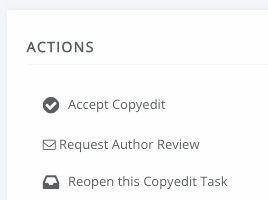
- The primary Editor should then review the Copyeditor's work. From here, the Editor may decide to re-open the copyedit task (if the Copyeditor needs to do additional work), Request Author Review of the copyeditors work, or Accept the Copyedit.
- Once all Copyedit assignments have been completed, select Complete Copyediting, which will move the article to the next stage: Typesetting.