⚠️ Before you begin:
- Interested in publishing HTML articles? Contact eScholarship Support to have this feature enabled for your journal.
- Already preparing HTML / XML versions of your articles? Contact eScholarship Support to learn how to use these files with Janeway / eScholarship.
Why Publish in HTML?
Most eScholarship journal articles have traditionally been published as PDFs, and PDFs will continue to have an important role. They are ideal for print-ready, precisely formatted documents. However, publishing an HTML version of your articles alongside the PDF offers significant benefits for your readers and for the reach of your publication.
Accessibility
Federal web accessibility guidelines — including Section 508 of the Rehabilitation Act and the Web Content Accessibility Guidelines (WCAG) — require that publicly funded academic content be accessible to users with disabilities. HTML is a fundamentally more accessible format than PDF because:
Screen readers and assistive technologies navigate HTML far more reliably than PDF, especially for documents with complex layouts, figures, or tables.
HTML automatically adjusts to any screen size, making articles easier to read on phones and tablets, which is critical for readers in regions where mobile is the primary means of accessing the internet.
Users can resize text, adjust contrast, and apply custom stylesheets without disrupting the document’s structure.
PDF accessibility can be improved, but it requires significant manual effort with specialized tools, while a well-structured Word document converted to HTML is accessible by default.
Discoverability
Accessibility and discoverability go hand in hand. The same properties that make HTML readable by assistive technology also make it readable by search engines and indexes. When an article is published in HTML:
Search engines like Google can fully index the article’s text, headings, and metadata — dramatically improving search rankings compared to PDFs, whose text is often poorly indexed.
Links within the article are live and clickable, helping readers navigate citations and related resources.
Social media previews and citation tools can extract accurate titles, abstracts, and author information directly from the page.
HTML articles can be read directly in the browser without requiring a PDF viewer, reducing friction for readers.
In short: making your content accessible is not just a compliance requirement — it is one of the most effective ways to increase the visibility and impact of your journal’s scholarship.
Before You Begin: Preparing Your Word Document
Janeway (the software eScholarship editors use to prepare manuscripts for publication) now includes a new tool that eases the creation of HTML articles: the Pandoc plugin. The Pandoc plugin converts a Word (.docx) file into HTML automatically, without the need to learn how to code HTML. The quality of the HTML file Pandoc creates depends on how well the original Word document is structured. A document that relies on visual formatting (such as manually bolded text to stand in for headings) will not convert as cleanly as one that uses Word’s built-in structural tools.
Consider adding the guidelines below to your journal’s Submission Guidelines, and review submitted manuscripts against them before running the conversion.
Use Word’s Built-In Heading Styles
This is the single most important thing an author can do. When Pandoc sees a paragraph styled as “Heading 1,” “Heading 2,” or “Heading 3,” it converts it to the correct HTML heading tag (<h1>, <h2>, <h3>). This gives the document a navigable structure for screen readers and search engines. (see: Microsoft Support: Apply a heading style in Word)
✅ Do: Select the heading text and apply a Heading style from the Styles panel in Word (or the Home tab → Styles group).
❌ Don’t: Make text look like a heading by manually increasing the font size, applying bold, or changing the color. These visual changes do not create meaningful structure and will not convert correctly.
Use Proper Lists
Pandoc recognizes Word’s native bulleted and numbered lists and converts them to proper HTML <ul> and <ol> elements.
✅ Do: Use Word’s list buttons (Home tab → Paragraph group) to create bulleted or numbered lists.
❌ Don’t: Type bullet characters manually (e.g., •, *, -) or use a dash at the start of a line to simulate a list.
Add Alt Text to Images
Alt text (alternative text) is a short description of an image that is read aloud by screen readers and displayed when an image cannot load. Pandoc will carry alt text from the Word document into the HTML output. (see: Microsoft Support: Add alternative text to shapes, pictures, and other objects)
✅ Do: Right-click each image in Word → “Edit Alt Text” → write a concise, meaningful description (e.g., “Bar chart showing mean response times by condition”).
❌ Don’t: Leave alt text blank, or use placeholder text like “image1” or “figure.”
Use Real Hyperlinks
✅ Do: Insert hyperlinks using Word’s link tool (Ctrl+K / Cmd+K) so the URL is embedded in the link text.
❌ Don’t: Paste bare URLs as plain text. While Pandoc may still pick these up, properly linked text is cleaner and more accessible.
Use Word’s Table Tool for Tables
✅ Do: Insert tables using Insert → Table. Where appropriate, designate the first row as a header row (Table Design tab → check “Header Row”).
❌ Don’t: Simulate tables using tabs, spaces, or manually aligned text. These will not convert to proper HTML tables.
Avoid Text Boxes and Floating Objects
Text boxes, floating images, and other objects that are positioned independently of the main text flow may not convert well to HTML. Content placed inside text boxes may be lost or appear out of order in the output.
✅ Do: Keep all content — including callouts, sidebars, and figures — inline with the main document text.
❌ Don’t: Use text boxes or the “Wrap Text” options to position images and content independently of the text flow.
Avoid Complex Multi-Column Layouts
Two-column page layouts (common in some journal templates) do not translate to HTML, which reflows text into a single column by default. This is actually a feature, not a limitation. Single-column HTML is easier to read on screens of all sizes.
✅ Do: Use a single-column layout for the manuscript Word file that will be converted.
❌ Don’t: Submit a two-column typeset PDF source file for conversion. Pandoc expects a document-like Word file, not a print-layout file.
Confirm the File Is in .docx Format
The Pandoc plugin requires a .docx file. Almost all modern versions of Microsoft Word save in this format by default. If an author submits an older .doc file, ask them to resave it as .docx before uploading.
Run Word’s Built-In Accessibility Checker
Microsoft Word includes an Accessibility Checker that automatically scans a document for common accessibility problems and explains how to fix them. Running it before uploading a manuscript is a quick way to catch issues such as missing alt text or tables without header rows that would otherwise carry through into the HTML output. (see: Microsoft Support: Improve accessibility with the Accessibility Checker)
To open the Accessibility Checker:
Windows: Review tab → Check Accessibility
Mac: Review tab → Check Accessibility
The checker results appear in a panel on the right side of the screen. Issues are grouped into three categories:
Errors — problems that make content inaccessible to some users (e.g., images with no alt text).
Warnings — issues that may cause difficulty for some users (e.g., tables with no header row).
Tips — suggestions for improving the reading experience (e.g., adding a document title in the file properties).
Clicking on any item in the results panel highlights the relevant part of the document and provides a short explanation of the problem and how to fix it. Aim to resolve all Errors and as many Warnings as possible before uploading the file.
Tip for editors: You can ask authors to run the Accessibility Checker themselves before submitting their final manuscript. This distributes the quality-control work and helps authors develop better document habits over time.
How to Generate HTML: Step-by-Step
Once you have a well-prepared .docx file uploaded to Janeway, generating the HTML galley takes just a few clicks.
1. Open the article and navigate to the Typesetting workflow stage.
2. Locate the “Files for Typesetting” section. You should see the uploaded manuscript files listed here.
3. Find the .docx file you want to convert. It should be labeled “Manuscript File.” Confirm that the filename ends in .docx.
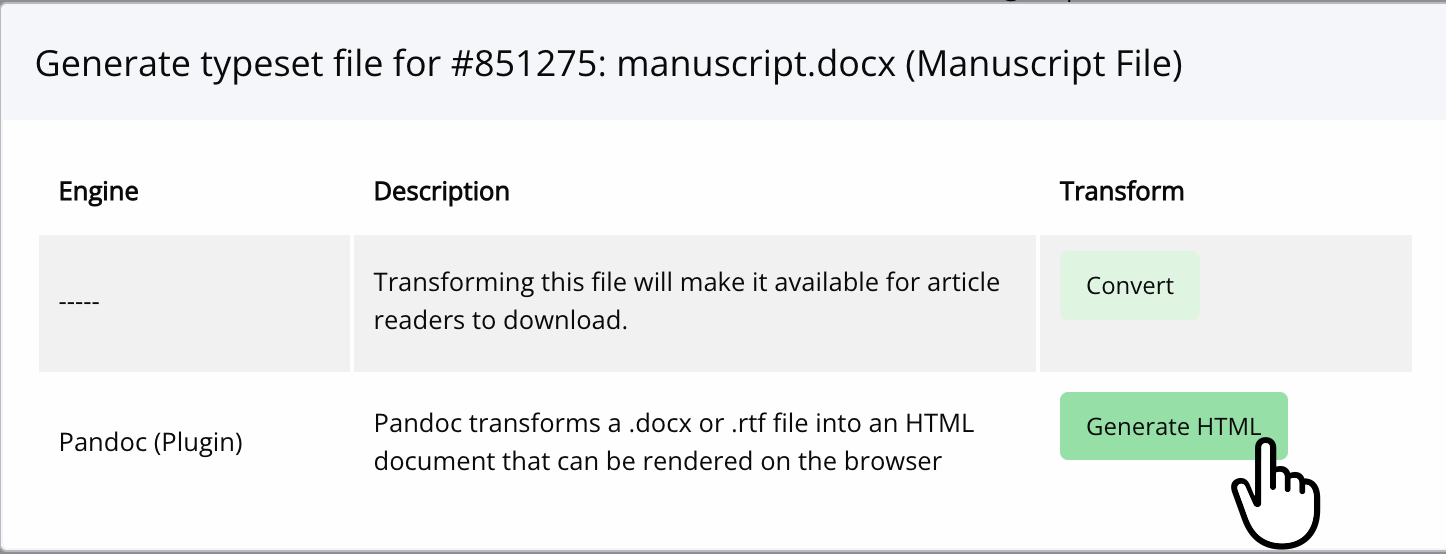
4. Click the “Options” link next to the .docx file. A dropdown menu will appear.
5. Select “Generate HTML” from the dropdown menu.
6. Wait a moment while the plugin processes the file. This typically takes only a few seconds.
7. Scroll down to the “Current Galleys” section. You will find the newly generated HTML file listed there. You can review any assets the tool generated (e.g. images) by selecting the Edit icon.
Note: If the “Generate HTML” option does not appear in the Options dropdown, verify that the file is in .docx format. Files in other formats (e.g., .pdf, .doc, .rtf) are not supported by the Pandoc plugin.
After Generation: Reviewing the HTML Galley
After the conversion, it is good practice to preview the HTML galley to make sure it looks as expected. Common things to check include:
Headings appear at the correct levels and are visually distinct from body text.
Images are displayed and have alt text visible in the page source.
Tables are properly formatted with header rows.
Lists are rendered as proper bulleted or numbered lists, not as plain text.
Hyperlinks are live and point to the correct URLs.
Special characters, accents, and non-Latin scripts are displayed correctly.
Footnotes or endnotes appear at the bottom of the article.
If you notice issues with the HTML output, the most common cause is that the source Word document did not follow the formatting best practices described above. In most cases, the best approach is to correct the Word document and regenerate the HTML, rather than editing the HTML file directly.
Tip: You can regenerate the HTML at any time by repeating the steps above. Each time you click “Generate HTML,” a new HTML file is created in the Current Galleys section.
Next Steps: Creating an Accessible PDF
If you also want to offer a downloadable PDF alongside your HTML article — which we recommend — the good news is that the work you’ve done here carries over directly. A well-structured Word document exports to an accessible PDF with minimal additional effort.
See our companion guide, Creating Accessible PDFs from Your Word Document, for step-by-step instructions on exporting correctly, setting document properties, and using Adobe Acrobat’s Accessibility Checker to verify and fix your PDF.